

Xylem Vue Secure Connect Access Administration FAQs
User administration
See User Management.
- Go to Admin.
- Go to Users.
- Click Add.
- Fill in the Name, Phone number, Email, Role, and the Language.
- Click Save.
The user is added to the list.
Only an administrator can delete a user from Secure Connect. An administrator cannot delete its own user.
- Go to Admin > Users.
- Select a user.
- Click Delete in the upper-right corner of the user profile.
- In the pop-up window, click Delete.
- Secure Connect deletes the user from the system. A confirmation message shows on the page.
When a user is deleted from Secure Connect, the user account is immediately deactivated. All user information is removed from Secure Connect, but historical operational data that is not bound to the user is stored.
A user can be idle for a limited time. If the idle time limit is reached, the user is logged out automatically. The following table shows the idle time limit dependent on the application.
| Application | Idle time limit |
| Web | 30 minutes |
| Mobile | 14 days |
- Go to the login page.
It is not possible to change or reset the password from a logged in session. If necessary, log out the current session. - Click Forgot Your Password?
- Type the email address for the account.
- Click Continue.
Secure Connect sends an email with instructions to reset the password. - In the mailbox, follow the instructions in the email.
A new Secure Connect page opens. - Type the new password.
- Click Reset Password.
The new password can now be used to log in. Secure Connect sends an email to confirm the reset.
To complete the creation of a new user in Secure Connect, the user must click the email address verification link. The link is sent to the email address that the administrator specified when they added the user.
If the email address verification link is lost or has expired, the administrator can ask for a new link through these steps:
- Go to Admin.
- Go to Users.
- Select a user.
- Click the Resend verification email button.
This action can be done five times. If the limit is reached, Contact Support.
The table shows the common reasons for that an email is not received. If none of the remedies work, contact support.
| Reason | Remedy |
|---|---|
|
The email is in the spam folder. |
Review the spam folder in the email inbox. |
|
The email address was misspelled on the Forgot Your Password page. |
1. Request a new password reset. Make sure to type the correct email address. |
|
The email address is not registered for any user. |
Ask the administrator to specify the email address that is registered for the user. |
|
A security firewall blocks the email. |
Ask the company IT support to allow emails from *@xylem-cloud.com. |
Yes, we support Multi-factor authentication, you enable MFA it during login.
Use Google Authenticator or FreeOTP app, there you enter one-time password on every log in.
No, only you and Xylem have access to your operational and personal data.
This information is applicable to the CCD 401 gateway.
- Go to Stations.
- Select a station.
- Go to Settings.
- Go to the Connectivity tab.
- Click Edit.
- Type the IP address in dot-decimal notation. Examples: 10.10.10.2, 192.168.200.14
- Select the netmask.
- Click Confirm.
Secure Connect updates the IP address settings.
Secure Connect is a monitoring service. It sends alarm notifications if anything happens at the station. These notifications can be sent in multiple ways.
In the mobile app
If the mobile app is installed on a phone, the app uses the built-in notification system in the phone and sends mobile app notifications. These notifications are similar to other phone notification from other apps. The user can read, click, or swipe them away.
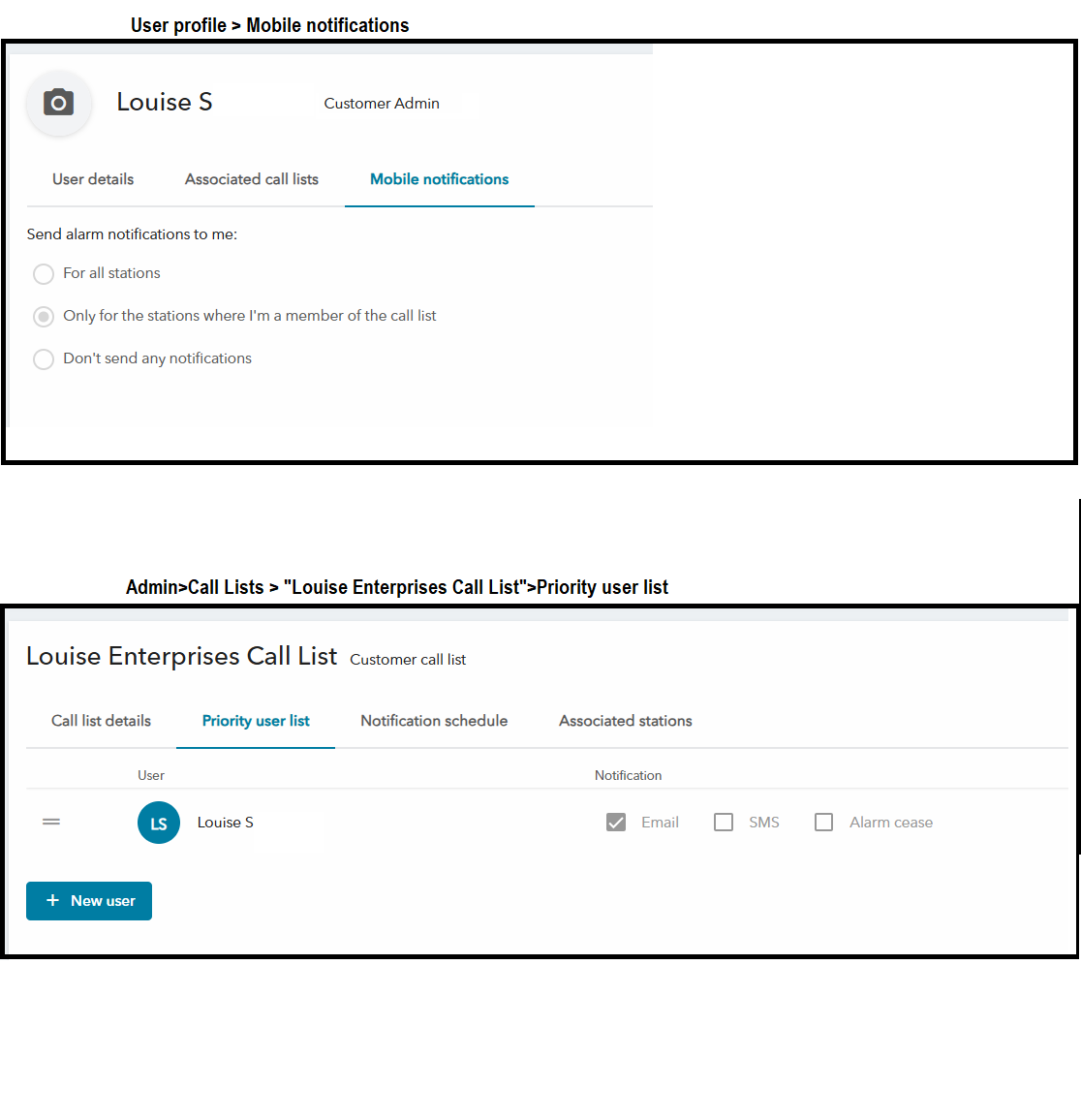
The user can change settings to receive or pause mobile app notifications under Profile > Mobile Notifications.
Notifications via SMS or email
If the user is a member of a call list, they receive notifications from the stations linked to that call list. As a call list member, the user chooses whether to receive emails, SMS, or both. This is set under Admin > Call Lists > Priority User List.
In the image below, the user will get both a notification from the Secure Connect app, and an email from all the stations related to the call lists.
User creation includes a request and validation process that verifies the user before access is granted to functions and call lists for all stations under the customer.
The process and required information for creating a user remain the same. To create a user, go to Admin > Users. The page contains two tabs: Users and Requests.
When a user is created or assigned a new role through multi role feature, a request is added to the Requests tab. For new users, an email is sent with a link to complete the setup process.
For existing users who are assigned an additional role, the user must sign in to Xylem Vue Secure Connect and either accept or decline the role. Users have 30 days to complete a request. After 30 days, the request expires and the user must be recreated.
The Requests tab shows the number of days remaining for each user role request. Request information remains available for a limited time 60 days after the request expires or is completed and is then removed from the list.
Multi role feature enables users to have multiple assigned roles and switch between roles at the customer and other hierarchy levels in Xylem Vue Secure Connect. A user can have up to 10 roles and switch between them. Only one role can be active at a time.
Users can view their active role by navigating to Admin > Users, selecting their user account from the list, and opening the Roles tab. The active role is also displayed in the user profile menu located in the upper-right corner of the application. Active role information is visible only to the user. Other users cannot view another user's active role.
Active role information is visible only to the user. Other users cannot view another user's active role.
When a new user is created and if the user has multiple roles, the user is prompted to select an initial active role during the account setup process. If new roles are assigned to a user, the user must accept or decline the new roles. This can be done either from the pop-up window that appears when logging in or from the Roles tab in the user profile under Admin > Users.
An active role change does not modify the user's call list assignments. The user continues to receive alarms from all assigned call lists.
Customer administration
- Log in to Secure Connect.
- Go to Admin > Customers.
- Select a customer.
- Go to the External clients tab.
- Click the Add button.
- Enter a Name.
- Enter a Description.
It is optional to write a description. - Click Save.
An external client is created and the user gets a unique Auth0 Client ID and a one-time Auth0 Client secret.
It is important to save the client secret as it is only displayed once. The client secret is required to access the Secure Connect REST APIs.
If the user forgets the client secret, a new external client must be created.
For more information, please see the Secure Connect API page and the Data FAQs API section.
Only a XRA can associate a customer to a regional partner.
- Go to Admin > Customers.
A list of customers opens. - Click to open a customer from the list and go to the Associated regional partners.
- Click the Associate button to show the list of the available regional partners.
- Select a regional partner and click Save.
The customer is associated to the selected regional partner.
Regional partners
Only a XRA can create a regional partner.
- Go to Admin > Regional partners.
- Click Add.
- Enter all the details in the form and click Save.
A new regional partner is created and shows in the list.